MrNussbaum Premium Silver allows
teachers to create spelling tests for students. These spelling tests
require the teacher to orally read the words to the students in a computer
lab like setting. Then, students TYPE the words in a special form and
submit them for a grade. The system automatically checks the words and
sends a report to the teacher's "spelling test" page so teachers never
have to hand grade a spelling test again.
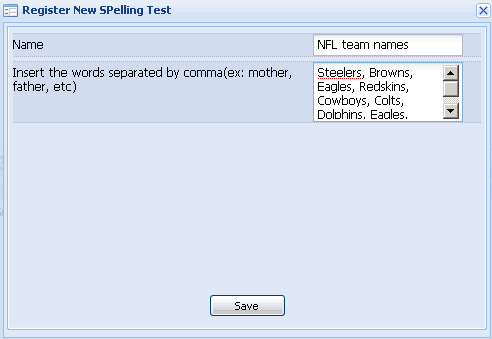
Step 2.) Fill out the information for the
spelling test and then click "save." Note
- you must separate each word with a comma. Words are also case
sensitive -- if you enter a word with a capital letter, the student
will have to use the same capital letter for it to be considered
correct.)
Step 2.) Click on "Deploy Spelling Test."
Step 3.) Click on the "homeworks" tab.
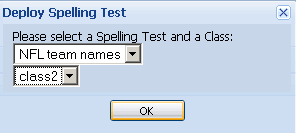
Step 4.) Select the spelling test to deploy
and the class to deploy it to.
How do Students see Assignment Sheets?
Step 1.) Log on as students and click the "events calendar"
icon.
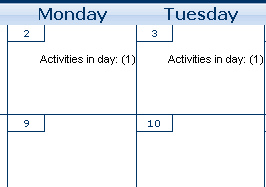
Step 2.) Student events calendar will appear. Days
that have been assigned homework will display "click here ."
Click on one of these days.
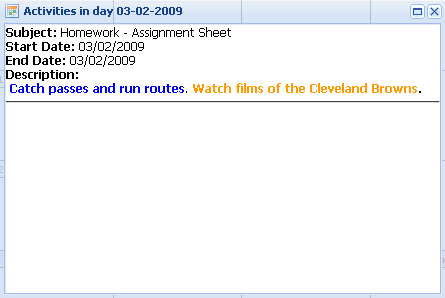
Step 3.) Read the homework description for that day
under Description.
How
do Students take Spelling Test?
Step 1.) Log on as a school user and click
the "spelling test" icon.
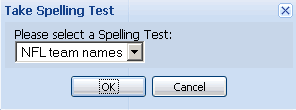
Step 2.) Click "take spelling test" and then
select the spelling test to be taken.
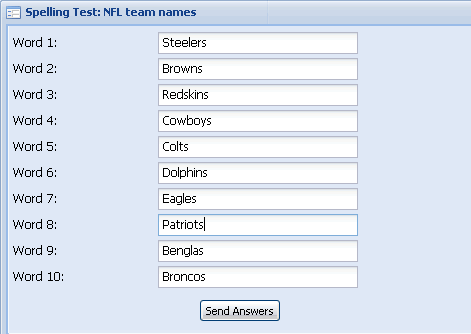
Step 3.) Enter the words in the blanks
as your teacher reads them. When you are satisfied, click "Send
Answers."
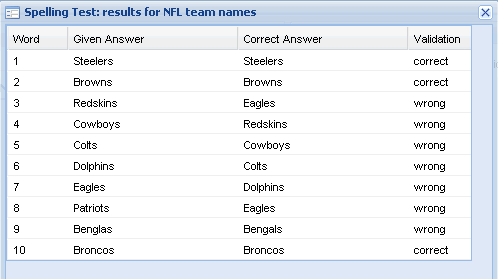
Step 4.) When you are done with your
tests, you will see the results.
Step 5.) The quiz score and details are recorded in the student
gradebook section, accessible from the "spelling test" section or
the "recorded scores" section.
How
do I See Results of a Spelling Test?
Step 1.) Log on
as a teacher and click the "spelling tests" icon.
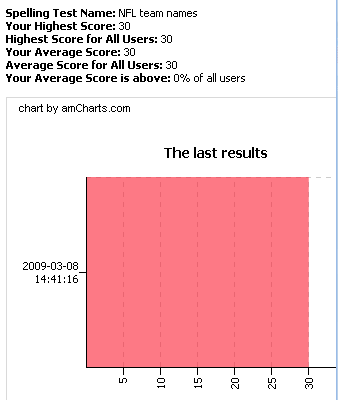
Step 2.) Click the test of interest
and a list of student scores will appear at the bottom of
the screen.