Information
Login
Contact
Privacy/Terms of Use

Games
MrNussbaum Premium offers 29 interactive learning games. These games can be used in a variety of ways - as assessments, for fun, or in tournaments. All scores are recorded and teachers and students alike can compare their scores to those of other users.
What are the Games?

There are 29 games available for use on MrNussbaumPremium.com. See the details below:

  • Tony Fraction's Pizza Shop - equivalent fractions
  • Clara Fraction's Ice Cream Shop - Mixed Numbers/Improper Fractions
  • Death to Decimals - Converting Fractions to Decimals/Vice Versa
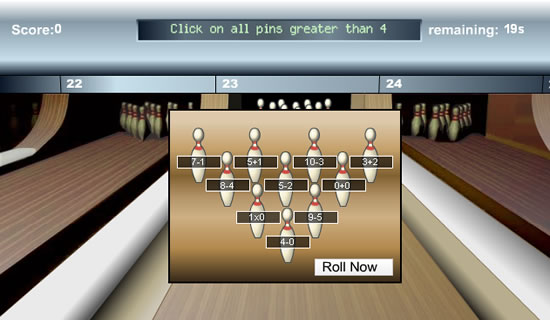
  • Bowling Pin Math - Comparing numbers and addition/subtraction equations
  • Teacher Dodgeball - Difficult addition and subtraction equations
  • Half-Court Rounding - Rounding tens, hundreds, tenths
  • Speed Math - Addition, subtraction, division, and multiplication facts
  • Custom Speed Math - Same as Speed Math but you choose the tables
  • Cash Out - Counting Money
  • Scottie Nickel - reducing coin amounts
  • Bedtime Bandits - Telling Time
  • Clockworks - Telling Time, four difficulty levels including elapsed
  • Artie Ounces - Metric Volume Conversions
  • Matthew Metric - Metric Length Conversions
  • Math Fries - Addition, Subtraction
  • World Cup Math - Addition, Subtraction, Multiplication, Division
  • Everglades Spelling - Spelling, Phonics
  • Hawkabulary - Vocabulary Fill-in the Sentence
  • Word Scramble - Word Identification, Unscramble the words
  • Conquer the Continents - Country Identification
  • Conquer the States - State Identification
  • Where is Mr.Nussbaum? U.S. Geography/Capitals/Landmarks Identification
  • Follow the States - Memory (like Simon, but with states)
  • Garage Sale Wizard - Comparing amounts of money
  • Place Value Pirates - Place value with and without decimals
  • Stock the Shelves - Coordinate Grid
  • Maximum Capacity - Addition Estimation

How do I Preview Games
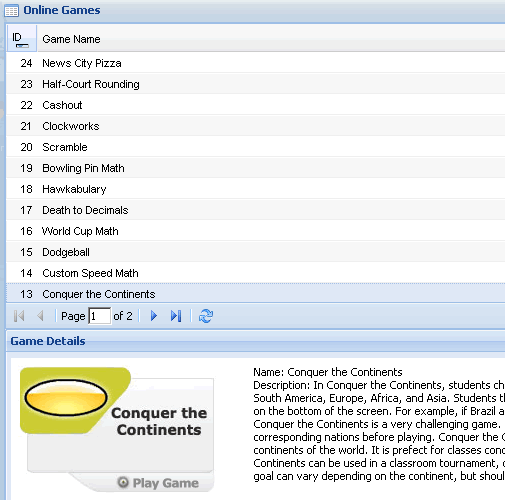
Step 1.) Log on as a teacher and click the "online games" icon.
Step 2.) Select the game you would like to preview and then click "play game" when the button and description appears at the bottom of the screen. Please note there are two pages of games. Type in Page "2" of "2," for example, to see all of the games.

How do Students Play Games?
Step 1.) Students should log on and click the "online games" icon. Then, follow the same procedure as the teacher (see above)
How do I check Scores?
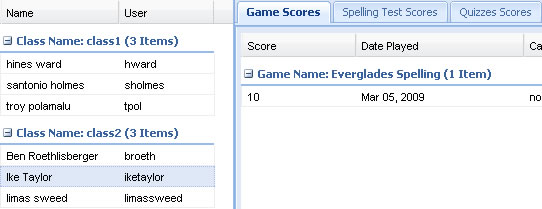
Step 1.) Log in as a teacher and click the "recorded scores" icon

Step 2.) click the "games tab" and click the student of interest from the left side. From this page you can also check quiz scores and spelling test scores.

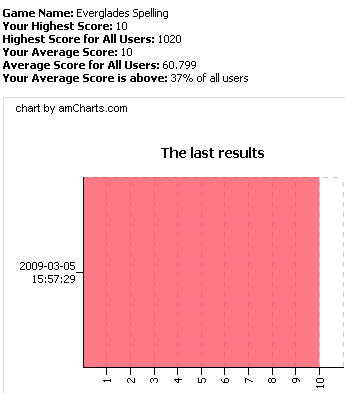
Step 3.) Click the actual score of interest (in the above example '10') to see additional details and graphs concerning the data.


Support Topics
Teacher Help Home
Teacher Account Features
Logging in/Logging Out
Adding a Class
Adding/Deleting/Editing Students
Using the Interface
Newsbox
Games
Bookmarks
Calendars
Assignment Sheets
Messaging
Message Boards
Polls
Quizzes
Spelling Tests
Inter-class Tournaments
Intra-class Tournaments
Flags
Recorded Scores