Information |
| Login |
| Contact |
| Privacy/Terms of Use |
Inter-class Tournaments |
Inter-class Tournaments allow your students to compete in friendly competitions with their classmates. Use any of the 29 available games for the tournament. If you use speed math, please see special instructions below. After you create your tournament and deploy it your students, the system will randomly match them up to compete against each other in pairs (unless you choose to set the matchups). If there are an odd number of students, one of the students will receive a free pass to the next round. As students finish their games within the tournament, the system updates the scores dynamically. These tournaments are kind of like the NCAA March Madness Basketball Tournament. The tournament winner will get to print out a special certificate commemorating their victory.
|
Step 1. Log on as a teacher and click the "inter-class Tournaments " icon. |
Step 2.) Click on "Add New Tournament"
|
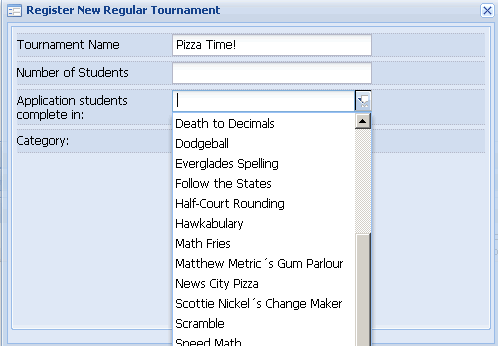
Step 3.) Fill out the information for the tournament. Note - ignore the "Category" menu unless making a speed math tournament. If using speed math, indicate the category (+, -, x, or /). Students must select the same category when participating in the Speed Math tournament, or the score will not get recorded. For example, if you select addition, students will have to select the addition option in the speed math game for score to count.
|
Step 4.) Click Save |
Step1.) Log in as a teacher
and click the "inter-class tournaments" icon.
|
Step 2.) Click "deploy tournament"
|
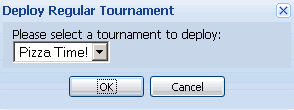
Step 3.) Select the tournament you wish to deploy. Click "ok."
|
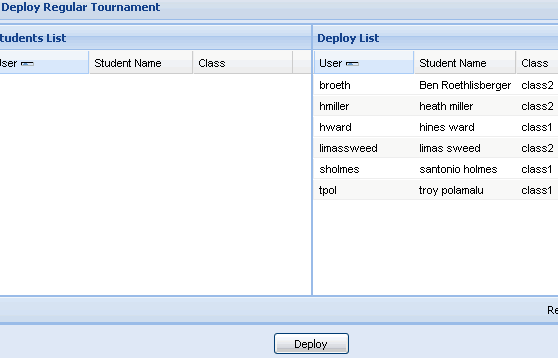
Step 4.) Add students to deploy the tournament to by dragging them and dropping them from the students list to the deploy list. You can drag and drop multiple students by pressing "ctrl" and "shift" simultaneously on your keyboard and click multiple students. Then, click "Deploy" and your tournament will be available to the selected students. The system will match them up randomly unless you choose the matchups.
|
| Step 1.) Log on as a teacher and click the "inter-class tournaments" icon. |
|
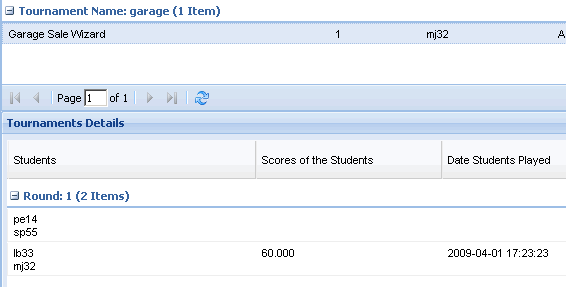
Step 2.) Click to select the tournament you would like to see scores from. The scores will appear at the bottom of the screen. Click "refresh" as more students finish their games to update scores. Please note, in the event of a "tie" in score between two students, scores are deleted and the users must play again.
|
| Step 1.) Log on as a teacher and click the "inter-class tournaments" icon. By default, tournaments matchup students randomly. This features allows you to make the matchups but it completely optional. |
|
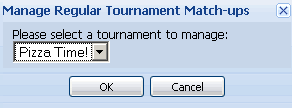
Step 2.) Click "Manage Tournament Matchups" and select the tournament in which you want to set up the student matchups. Note - this feature is unavailable once a student has played in the tournament.
|
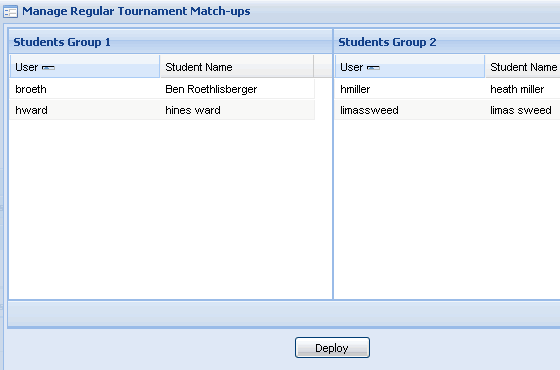
Step 3.) Drag and drop students from one grid to the next to make matchups. In this case, Ben Roethlisberger would compete against Heath Miller and Hines Ward would compete against Limas Sweed. When you are done, click "Deploy." Note - Once you deploy a tournament in which you set the matchups, you cannot go back and change matchups.
|
| Step 1.) Click to select the tournament of interest. |
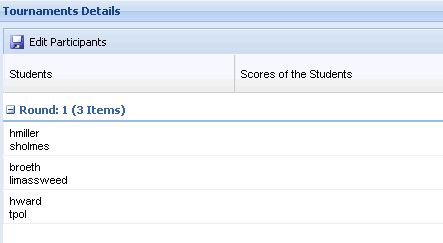
Step 2.) In the tournament details section (at the bottom of the page) click to select the pairing that contains the score you want to edit. You can enter a score for students who do not or cannot participate in the tournament. Click "edit participants"
|
|
Step 3.) Enter scores and click "save."
|
| Step 1.) Log in as a student and click the "inter-class tournaments" icon. |
Step 2.) Click "play in a tournament"
|
|
Step 3.) Select the tournament from the menu and play game. Your score will automatically get entered into the tournament when you complete the game.
|
Step 4.) Students should play the game.
|
Step 5.) When students are finished they can see the up-to-date tournament scores. Students who win round one will play in round two, and so on. For students who win, simply repeat the steps above to play in the next round. Students who do not win in round one will not be able to play the game from the tournament window again. Note - all students in the tournament must play in a round before the tournament can continue.
|
Step 1.) Students who win a tournament can print out a special certificate honoring them for their victory. From the tournament section, the student should click on "Get Tour Certificate." This is only available to the tournament winner.
|



 "
"