Information |
| Login |
| Contact |
| Privacy/Terms of Use |
Recorded Scores |
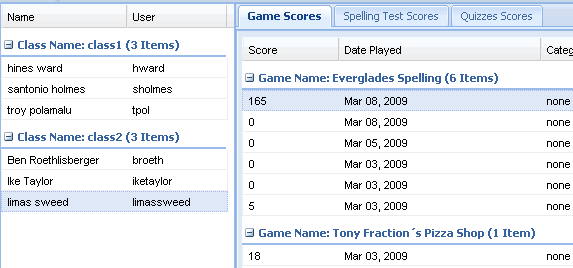
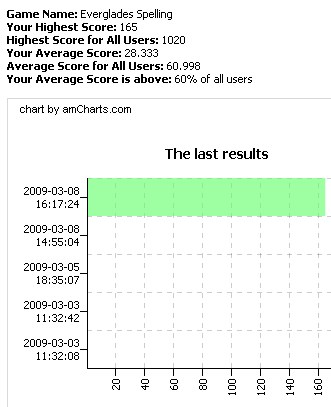
MrNussbaum Premium Silver features a "recorded scores" section in both teacher and student accounts. The "recorded scores" section is a large gradebook that keeps track and organizes all scores on games, quizzes, and spelling tests. Using the "recorded scores"section is fairly self explanatory. Simply click on the tab of interest (game scores, quiz scores, or spelling test scores) and then on the student of interest on the left side. A summary of all of the selected student's activity will appear (depending on what tab you clicked). Click on a specific score to see statistics related to that score. |
Step 1.) Log on as a teacher and click "recorded scores."
|
Step 2.) Click on the game scores, spelling test scores, or quiz scores tabs on the top of the page. Then, click on the student of interest that appears on the left side.
|
Step 3.) Click on an individual score to see statistics and graph related to that score.
|
| Step 1.) Exactly the same way as above, except they should log on as "school users." |