Information |
| Login |
| Contact |
| Privacy/Terms of Use |
Quizzes |
MrNussbaum Premium Silver allows teachers to create and deploy quizzes in several formats. Students receive immediate feedback and all scores and details of each quiz are stored in the quizzes and recorded scores section of the teacher account. Students can also access their quiz data. There are several new features available to teachers including: ability to edit grades, to limit the number of times a particular quiz can be taken, and to export scores to an excel spreadsheet. |
|
Step 1.) Click on " Add New Quiz."
|
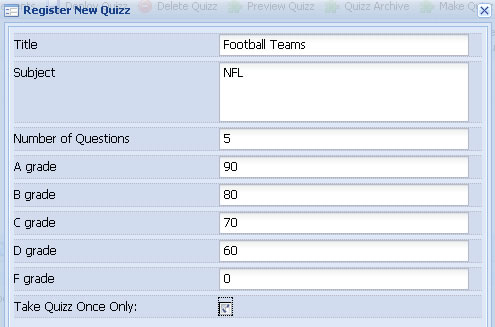
Step 2.) Fill out the information for the quiz Note - you must define the grade parameters of the quiz. On the right, all scores of 90 and above are assigned A, 80 to 89 are assigned B, and so on. You can edit the letter grades as well (but not here). Click the "Take Quiz Once Only" button if you do not want students to be able to take the quiz more than once. Click save when done. Your test will be saved and be visible at the top of the page.
|
Step 3.) Click to select the quiz of interest and click "define quiz elements."
|
Step 4.) Fill in the questions and define the choices (if applicable) and the answers. Click "send answers" when finished. The example to the right is for a multiple choice quiz. Creating True and False Quizzes and Short Answer quizzes are similar and self-explanatory. The next step is to deploy the quiz
|
Step 1.) Click "Deploy Quiz."
|
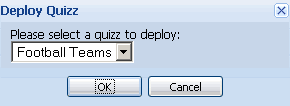
Step 2.) Select the Quiz to be deployed.
|
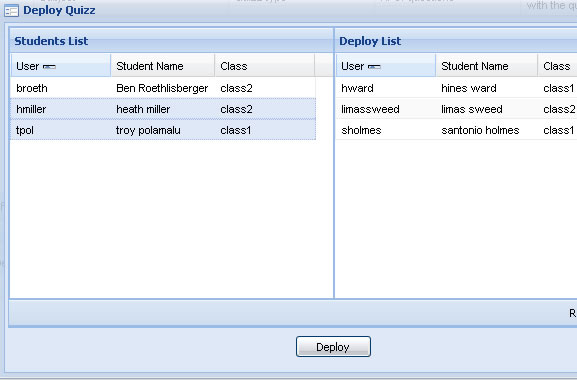
Step 3.) Drag and drop students you want to deploy the quiz to from the students list to the deploy list. Click "ctrl" and "shift" at the same time to drag multiple students. Click "deploy" when satisfied.
|
Step 1.) Click "Add New Quiz."
|
|
Step 2.) Select "essay quiz."
|
Step 3.) Enter the required information and click "save."
|
Step 4.) Click to select the registered quiz of interest and then click "define quiz elements."
|
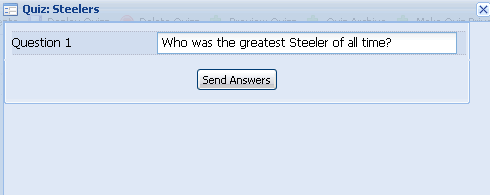
Step 5.) Enter the essay question(s) and then click "Send Answers."
|
Step 6.) To grade the quiz (and after students take the quiz), click to select the quiz you want to grade. Students who have taken the quiz will appear underneath. Click to select the student you want to grade and then click "see gradebook details."
|
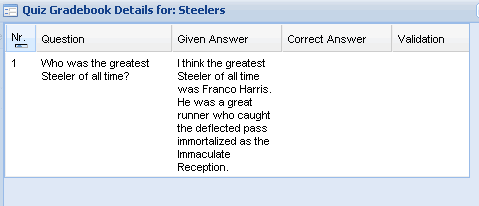
Step 7.) Read the student answer.
|
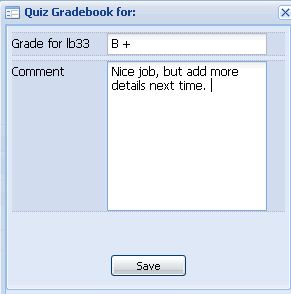
Step 8.) Grade the essay by clicking "edit student grade." Add a comment for the student to see also. Click "save." The grade and comment will be saved in the teacher and student accounts.
|
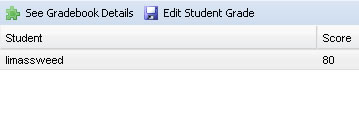
Step 1.) Click to select the quiz of interest and the gradebook for that quiz will appear at the bottom. You will be able to see the scores for each student who took the test.
|
|
Step 2.) To see the questions a particular student missed, click to select the student score of interest and then click "see gradebook details." To edit a letter grade, select the student score of interest and click "edit student grade."
|
Step 1.) Log on as a student and click on the "quizzes" icon. Click the "Take a Quiz" button at the top of the page.
|
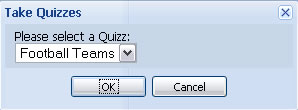
Step 2.) Select the quiz to be taken.
|
Step 3.) Take the quiz. When you are done click "save." You will get you scores immediately and see which questions you answered correctly and which you answered incorrectly (unless you took an essay quiz in which case you will have to wait for your teacher to grade it) . Your score will then be accessible from both the quizzes section and the recorded scores section of your account.
|