Information |
| Login |
| Contact |
| Privacy/Terms of Use |
Polls |
MrNussbaum Premium offers students registered by their teachers (school users) the opportunity to create polls in which their classmates respond to. Results are displayed in a handy graph. Students can create and respond to an unlimited number of polls. Please be aware that this feature must be enabled by the teacher on a student-by-student basis. Although polls can be monitored by the teachers, only students create polls. |
| Step 1.) Log on as a teacher and click the "students" icon. |
Step 2.) Click to select the student of interest and then "click enable/disable polls."
|
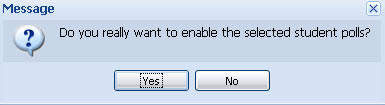
Step 3.) Confirm to enable or disable or cancel. Note - to enable polls, you must do this for each student!
|
| Step 1.) Log on as a student and click the "polls" icon. |
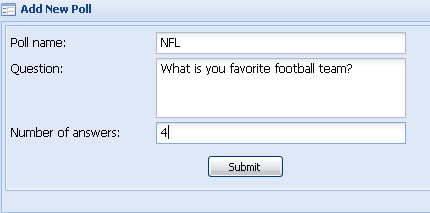
Step 2.) Click "add new poll" and fill in the information for that poll. Number of answers means the number of choices you will give students when they respond to your poll.
|
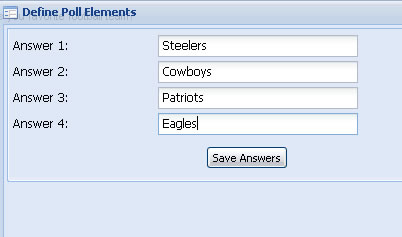
Step 3.) Select the poll of interest and click "define poll elements." Then, fill in the poll choices and click "save answers." Your poll is now saved and deployed to classmates.
|
| Step 1.) Log on as a student and click on the "polls icon." |
Step 2.) Click the "classmates polls" tab at the top of the page.
|
Step 3.) Click to select the poll of interest and then click "Answer to classmate poll."
|
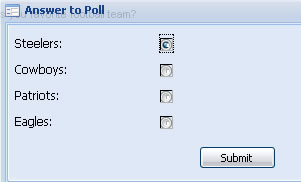
Step 4.) Click the choice you are voting for and click "submit."
|
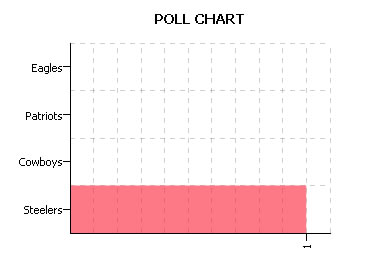
Step 5.) You will see a graph of poll results.
|
| Step 1.) Log on as a student and click on the "polls" icon. |
Step 2.) Click to select the poll of interest and then click on "display poll results"
|
Step 3. ) A graph of your poll results will appear.
|
| Step 1.) Log in as a teacher and click the "polls" icon. |
Step 2.) Click to select the poll of interest and then click "display poll results." Here, you can see who created the poll and the name of the poll.
|
Step 3.) The results of the poll will appear as a graph. Here, you can see the choices the student assigned to the poll.
|