After you create your classes on MrNussbaumpremium.com,
it is time to add students to those classes. You can add an unlimited
number of students to your classes. Adding students to your classes is
very easy. You assign each student a unique user name and password
for accessing the site. By registering students, you are creating individual
accounts for them. Remember, students will access the site by logging
is as "SCHOOL USERS." Whether they access the site at school, or from
home, if they are registered by a teacher, they are always school users.
Step 1.) Log on as a teacher and click on the
"students" icon.
Step 2.) Click on Click on "Add New Student."
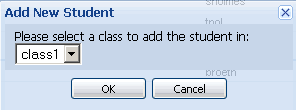
Step 3.) Select the class to add the student to (you have
to create a class or classes before you can add students).
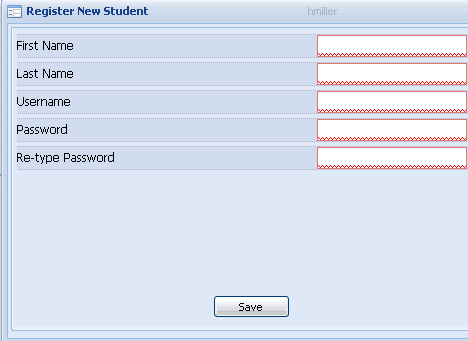
Step 4.) Enter student information. NOTE
- all student user names must be UNIQUE! If the username
you choose has been chosen by someone else in the system,
registration will fail. For example, rather than choosing
bjones, choose something more like bjones1234. This will
save a lot of time and frustration.
Step 5.) Click Save
Editing Student Information
Step 1.) Log on as a teacher and click the "students icon."
Step 2.) Click to highlight the chosen student.
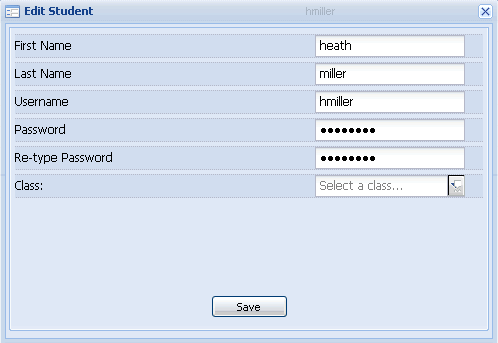
Step 3.) Click "edit student."
Step 4.) Enter new information (password, new class etc.)
and click "save." You cannot change user name.
Deleting a Student
Step 1.) Log on as a teacher and click the "students" icon.